How to Get a Torrent File from a Magnet Link or Infohash
A practical guide to converting magnet links and bare infohashes into .torrent files using aria2c, BitTorrent clients, and other methods. Learn how the metadata discovery process works and which approach is best for your needs.
Introduction
If you've spent any time in the BitTorrent ecosystem, you've likely encountered magnet
links. They're everywhere — on torrent index sites, in chat rooms, and shared between
users. But sometimes you need the actual .torrent file instead: perhaps for archiving,
sharing with someone who prefers the old format, seeding on a tracker, or inspecting the metadata
manually.
The core challenge is the same whether you have a magnet link or just a bare infohash: you need to fetch the metadata from the BitTorrent network. The infohash (a 20-byte SHA-1 hash) uniquely identifies a torrent, but it doesn't contain the file list, piece hashes, or other metadata — that information lives with peers who have the full torrent. A magnet link is simply a convenient URI that packages the infohash along with optional display names and tracker URLs.
In this guide, we'll explore several methods to obtain a .torrent file from a magnet
link or infohash, starting with the simplest conceptual building block and building up to the
most practical everyday tools.
Who needs this? If you're a BitTorrent developer, you might need the .torrent file to inspect metadata during testing. Tracker operators often see only an infohash in their logs and want to know what content it corresponds to. Self-hosters may need the file to register a torrent on a private
tracker. And sometimes you just want to archive the metadata separately
from the data — a .torrent file is a few hundred kilobytes, while the actual content
can be gigabytes.
.torrent file contains metadata only — the file list, piece hashes, piece length, and tracker
URLs. It does not contain the actual file content. You still need a BitTorrent
client to download the real data using this metadata. Think of it as a recipe describing the
dish, not the dish itself.What Is a Magnet Link?
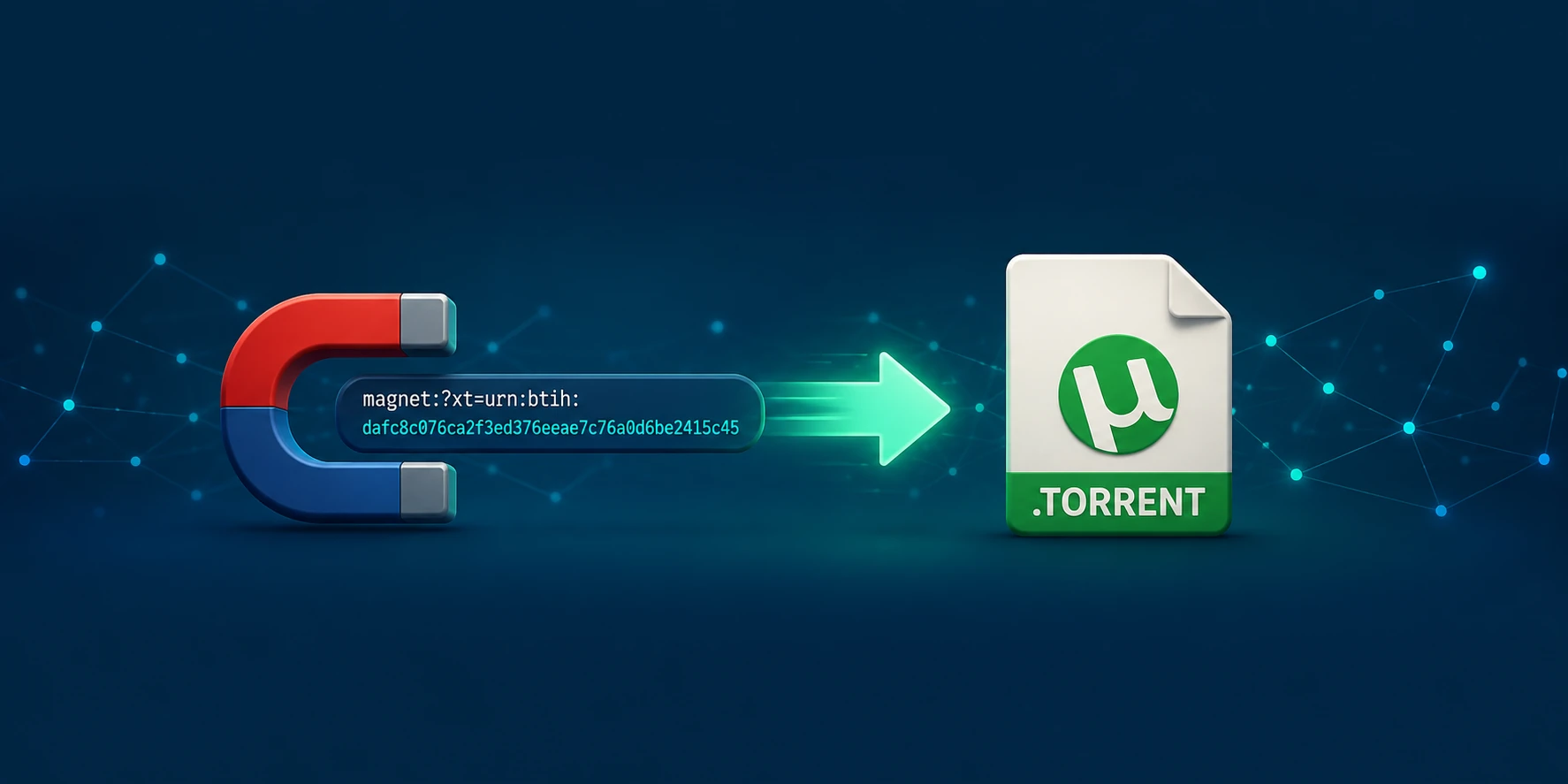
A magnet link is a URI scheme that identifies a torrent by its infohash rather than by a file. Here's what a typical magnet link looks like:
magnet:?xt=urn:btih:dafc8c076ca2f3ed376eeae7c76a0d6be2415c45&dn=ubuntu-26.04-desktop-amd64.iso&tr=https%3a%2f%2ftorrent.ubuntu.com%2fannounce&tr=https%3a%2f%2fipv6.torrent.ubuntu.com%2fannounceLet's break down the components:
xt=urn:btih:<infohash>— The essential part.xtstands for "exact topic", andurn:btihmeans this is a BitTorrent infohash (version 1). The 40-character hex string is the SHA-1 hash of the torrent's info dictionary. Everything else is optional. Base32 encoding (32 characters) is also supported for compatibility.dn=<name>— The display name (optional). A human-readable filename for convenience before metadata is fetched.tr=<url>— Tracker URLs (optional, repeatable). One or more tracker announce URLs to help discover peers.
The key insight: a bare infohash is all you truly need. If you remove
everything from the magnet link except xt=urn:btih:<infohash>, you can
still reconstruct the full magnet link manually. This means any tool or method that works
with magnet links also works with bare infohashes — you just need to wrap the infohash in
a minimal magnet URI first.
From a Bare Infohash to a Magnet Link
Tools like aria2c don't accept a bare infohash directly — they need a magnet link. So if
all you have is a 40-character hex string like dafc8c076ca2f3ed376eeae7c76a0d6be2415c45, the first step is to wrap it in a
magnet URI. You can do this manually:
MAGNET="magnet:?xt=urn:btih:dafc8c076ca2f3ed376eeae7c76a0d6be2415c45"For better results, add one or more tracker URLs to help with peer discovery:
MAGNET="magnet:?xt=urn:btih:dafc8c076ca2f3ed376eeae7c76a0d6be2415c45&tr=https%3a%2f%2ftorrent.ubuntu.com%2fannounce&tr=https%3a%2f%2fipv6.torrent.ubuntu.com%2fannounce"Once you have the magnet link, you can use any of the methods that follow. From this point on, there's no difference between a magnet link you constructed from an infohash and one you found on a website.
Method 1: Using aria2c (Recommended)
aria2 is a lightweight, multi-protocol download utility that supports BitTorrent with metadata fetching. It's the most straightforward tool for this job because it's available on all platforms, requires no GUI, and can be scripted easily.
Installation
aria2 can be installed via your system's package manager:
# Debian / Ubuntu
sudo apt install aria2

# macOS (Homebrew)
brew install aria2

# Windows (Chocolatey)
choco install aria2
The Basic Command
To fetch the .torrent file from a magnet link without downloading the actual data,
use:
aria2c -d /tmp --bt-save-metadata=true --bt-metadata-only=true --follow-torrent=false "magnet:?xt=urn:btih:dafc8c076ca2f3ed376eeae7c76a0d6be2415c45&dn=ubuntu-26.04-desktop-amd64.iso&tr=https%3a%2f%2ftorrent.ubuntu.com%2fannounce&tr=https%3a%2f%2fipv6.torrent.ubuntu.com%2fannounce"Let's break down each flag:
-d <directory>— The directory where the.torrentfile will be saved. Below we use/tmp, but you can change it to any folder.--bt-save-metadata=true— Save the fetched metadata (the.torrentfile) to disk instead of discarding it after download.--bt-metadata-only=true— Only fetch the metadata, don't download the actual file content. This is the key flag that tells aria2 to stop after getting the.torrent.--follow-torrent=false— Don't automatically start downloading the torrent after fetching the metadata. Without this, aria2 would proceed to download the actual files.
Expected Output
Here's the real output from a successful run:
06/15 16:56:02 [NOTICE] Downloading 1 item(s)
06/15 16:56:02 [NOTICE] IPv4 DHT: listening on UDP port 6966
06/15 16:56:02 [NOTICE] IPv4 BitTorrent: listening on TCP port 6951
06/15 16:56:02 [NOTICE] IPv6 BitTorrent: listening on TCP port 6951
[#3495d8 485KiB/485KiB(100%) CN:43 SD:2]
06/15 16:56:45 [NOTICE] Download complete: [MEMORY][METADATA]ubuntu-26.04-desktop-amd64.iso
06/15 16:56:45 [NOTICE] Saved metadata as /tmp/dafc8c076ca2f3ed376eeae7c76a0d6be2415c45.torrent.
After about 45 seconds, aria2 discovered 43 peers (CN:43) with 2 seeders (SD:2) and saved
the metadata as a .torrent file. The file is 485 KiB and contains the full torrent
metadata.
Using aria2c with a Bare Infohash
As shown above, you can construct the magnet link inline:
aria2c -d /tmp --bt-save-metadata=true --bt-metadata-only=true --follow-torrent=false "magnet:?xt=urn:btih:dafc8c076ca2f3ed376eeae7c76a0d6be2415c45&tr=https%3a%2f%2ftorrent.ubuntu.com%2fannounce&tr=https%3a%2f%2fipv6.torrent.ubuntu.com%2fannounce".torrent file from
a magnet link.Method 2: Using Torrust Hash2Torrent
Torrust Hash2Torrent is a
web service developed by the Torrust team that converts infohashes directly into .torrent files without needing a full BitTorrent client installation. It
wraps the rqbit Rust BitTorrent client and
uses BEP 9 metadata exchange to fetch
the torrent file from peers.
The service was previously available at hash2torrent.com, but the public demo
is currently paused. You can still run it locally from source or Docker:
Running Locally with Cargo
Make sure Rust is installed, then clone and run:
git clone https://github.com/torrust/torrust-hash2torrent.git
cd torrust-hash2torrent

# Create the required session directory
sudo mkdir -p /var/lib/torrust/hash2torrent/session
sudo mkdir -p /var/lib/torrust/hash2torrent/torrents
sudo chown -R $(id -u):$(id -u) /var/lib/torrust/hash2torrent

# Run the server
cargo run
When the server starts, you'll see log output confirming it's ready:
2026-06-15T15:57:42.793Z  INFO torrust_hash2torrent: creating BitTorrent client and starting the session ...
2026-06-15T15:57:42.794Z  INFO librqbit::session: Listening on 0.0.0.0:51000 for incoming peer connections
2026-06-15T15:57:42.797Z  INFO librqbit_dht::dht: DHT listening on 0.0.0.0:53173
2026-06-15T15:57:42.806Z  INFO torrust_hash2torrent: starting API on: http://0.0.0.0:3000 ...
The server listens on port 3000 for HTTP API requests, port 51000 for incoming BitTorrent peer connections, and initialises the DHT on
port 53173 to discover peers in the swarm.
Running Locally with Docker
git clone https://github.com/torrust/torrust-hash2torrent.git
cd torrust-hash2torrent

# Create directories for persistent storage
mkdir -p ./storage/hash2torrent/lib ./storage/hash2torrent/log ./storage/hash2torrent/etc
sudo mkdir -p /var/lib/torrust/hash2torrent/session
sudo mkdir -p /var/lib/torrust/hash2torrent/torrents
sudo chown -R $(id -u):$(id -u) /var/lib/torrust/hash2torrent

# Build and run
./contrib/dev-tools/containers/docker-build.sh
./contrib/dev-tools/containers/docker-run.sh
Once the server is running, you can download the torrent file with curl. Here's the real output:
$ curl -o ./ubuntu-26.04-desktop-amd64.iso.torrent http://127.0.0.1:3000/torrents/dafc8c076ca2f3ed376eeae7c76a0d6be2415c45
  % Total    % Received % Xferd  Average Speed   Time    Time     Time  Current
                                 Dload  Upload   Total   Spent    Left  Speed
100  486k  100  486k    0      0   264k      0  0:00:01  0:00:01 --:--:--  264k
While the request is being processed, the server logs what it does internally:
2026-06-15T16:00:37.756Z  INFO torrust_hash2torrent::api::handler: req: dafc8c076ca2f3ed376eeae7c76a0d6be2415c45
2026-06-15T16:00:39.583Z  INFO torrust_hash2torrent::api::cache: adding torrent to cache in /var/lib/torrust/hash2torrent/torrents/dafc8c076ca2f3ed376eeae7c76a0d6be2415c45.torrent
The server first logs the incoming request with the infohash, fetches the metadata from
the BitTorrent network via rqbit, and caches the resulting .torrent file to disk
so subsequent requests for the same infohash are served instantly.
The HTTP response returns a .torrent file with the correct content-type (application/x-bittorrent) and includes the infohash in the custom header X-Torrust-Torrent-Infohash for easy verification.
.torrent file. If you check
the output of aria2c -S after downloading via hash2torrent, you'll notice the Announce: section is empty. You can re-add trackers manually, or rely on DHT for
peer discovery.Method 3: Using a BitTorrent Client (GUI)
If you prefer a graphical interface, most BitTorrent clients can add a magnet link and
then export the .torrent file after the metadata is fetched.
qBittorrent
- Open qBittorrent and click File → Add Torrent Link (or press
Ctrl+Shift+M). - Paste the magnet link and click OK.
- Wait for the metadata to download (you'll see "Downloading metadata..." in the status).
- Right-click the torrent and select Advanced → Export .torrent File.
Transmission
- Open Transmission and click File → Open Torrent Address (or press
Ctrl+Shift+O). - Paste the magnet link and click Open.
- Once the metadata is fetched, the torrent file is stored in Transmission's config
directory:
- Linux:
~/.config/transmission/torrents/ - macOS:
~/Library/Application Support/Transmission/Torrents/
- Linux:
- You can copy the
.torrentfile from there.
.torrent export is effectively a snapshot of the metadata they've
already fetched. If the torrent has no active peers, they may stall at "downloading metadata"
indefinitely.Method 4: Online Services (Use with Caution)
Several websites offer magnet-to-torrent conversion as a service. You paste a magnet link,
and they return a downloadable .torrent file. One such example is magnet2torrent.com, which provides a simple
paste-and-download interface.
.torrent file.Online services can be convenient if you're in a hurry or have no local tools available, but we recommend using aria2c or a local client whenever possible.
Overview of All Methods and Tools
Beyond the methods detailed above, there are many other tools and libraries that can
convert an infohash or magnet link into a .torrent file. Here is a comprehensive
reference:
CLI Tools
| Tool | Language | Example Command | Notes |
|---|---|---|---|
| aria2c | C++ | aria2c --bt-metadata-only --bt-save-metadata "magnet:?..." | ✅ Detailed above. Cross-platform. |
| rqbit | Rust | rqbit download "magnet:?..." | Full client with HTTP API. Powers Hash2Torrent. |
| transmission-cli | C | transmission-remote --add "magnet:?..." | Requires daemon. Extract .torrent from config dir. |
| webtorrent-cli | JS | webtorrent "magnet:?..." | Node.js. Can stream to stdout. |
| deluge-console | Python | deluge-console add "magnet:?..." | Daemon-based. Uses libtorrent internally. |
Web Services
| Service | URL | Notes |
|---|---|---|
| Torrust Hash2Torrent | hash2torrent.com (paused) | Torrust's own service. Self-hostable. |
| magnet2torrent.com | magnet2torrent.com | Browser-based. Privacy concerns apply. |
| webtor-io | GitHub | gRPC service. Self-hostable (Go). |
Libraries (for Developers)
| Library | Language | Notes |
|---|---|---|
| librqbit | Rust | Core library used by Hash2Torrent. Full BEP 9. |
| libtorrent | C++ / Python | De facto standard. Python bindings available. |
| WebTorrent | JavaScript | Streaming client for Node.js and browser. |
| ut_metadata | JavaScript | BEP 9 plugin for bittorrent-protocol. |
| bittorrent-dht | JavaScript | DHT client to find peers for custom flows. |
Protocol-Level (DIY)
| Approach | BEP | Description |
|---|---|---|
| DHT Lookup + BEP 9 | BEP 5, BEP 9 | Find peers via DHT, then request metadata via extension protocol. |
| Local Peer Discovery | BEP 14 | Discover peers on LAN and fetch metadata (no internet needed). |
Verifying the Downloaded Torrent File
Once you have the .torrent file, you can quickly verify its contents using aria2c
itself — no additional tools needed:
aria2c -S ubuntu-26.04-desktop-amd64.iso.torrentThis will list all files inside the torrent along with their sizes. If the output matches
your expectations (e.g. you see ubuntu-26.04-desktop-amd64.iso with the expected size), the metadata was fetched correctly and the torrent file is valid.
For a deeper inspection, you can pipe the raw bencoded data through bencode2json, another small Torrust utility that converts bencode to JSON — a perfect example of the Unix philosophy of small, single-responsibility tools working together:
bencode2json < ubuntu-26.04-desktop-amd64.iso.torrent | jq .infoThis outputs the full metadata in a readable JSON format, which is useful for scripting or automated processing.
Troubleshooting Common Issues
No Peers Found
The most common issue is that the torrent has no active peers in the swarm. This can happen with old or unpopular torrents. Solutions:
- Add more trackers: Append additional
&tr=<url>parameters to the magnet link. - Wait longer: Some swarms are slow to respond. aria2c will keep retrying for a while.
- Check DHT: Ensure DHT is enabled in your client. aria2c enables it by default.
Metadata Download Times Out
If aria2c can't fetch the metadata within a reasonable time, the swarm may be empty or the peers may not support BEP 9 (the metadata exchange extension). Try:
- Using a different tracker URL
- Trying again later when more peers might be online
- Finding the torrent file directly on the original index site
DHT Is Blocked
Some networks (corporate, university, or certain ISPs) block DHT traffic. In that case, you'll need trackers to find peers. Make sure your magnet link includes at least one reliable tracker URL.
aria2c Not Found
If the aria2c command is not available after installation, ensure the
installation directory is in your PATH. On some systems, you may need to
start a new terminal session after installing.
Which Method Should You Choose?
Here's a quick comparison across the factors that matter most — privacy, ease of use, and reliability — to help you decide which approach fits your needs:
| Factor | aria2c | rqbit CLI | Hash2Torrent | GUI Client | Online Service |
|---|---|---|---|---|---|
| Privacy | ★★★ Local | ★★★ Local | ★★ Self-host / ★ Demo | ★★★ Local | ★ Reveals infohash |
| Installation | ★★★ apt install aria2 | ★★ cargo install rqbit | ★ Needs server setup | ★★★ Download installer | ★★★ Nothing needed |
| Cross-platform | ★★★ All three | ★★★ All three | ★★ Docker / Rust | ★★★ All three | ★★★ Browser |
| Scriptability | ★★★ One-liner | ★★★ CLI + HTTP API | ★★★ HTTP API | ★ Manual clicks | ★★★ curl |
| Reliability | ★★★ Mature, active | ★★★ Active dev | ★★ Demo paused | ★★★ Mature | ★ Come and go |
| Dependencies | ★★★ Single binary | ★★ Rust toolchain | ★ Full server stack | ★★ Full desktop app | ★★★ None |
| Learning curve | ★★★ 1 command | ★★★ 1 command | ★★ Run a server | ★★★ Point & click | ★★★ Paste & download |
| Metadata-only | ★★★ Yes (--bt-metadata-only) | ★★★ Yes | ★★★ Yes | ★★ Downloads content | ★★★ Yes |
Conclusion
Converting a magnet link or infohash into a .torrent file is a common task in the
BitTorrent ecosystem, and as we've seen, there are multiple ways to do it. The underlying mechanism
is always the same: the infohash is used to discover peers via DHT or trackers, and the metadata
is fetched from those peers using BEP 9.
Our top recommendation is aria2c — it's fast, works everywhere, and the command is simple enough to remember or script. For infohashes, just construct a magnet link first, then apply the same aria2c command.
Whether you need the .torrent file for archiving, sharing, or inspection, these
methods will get you there. And the next time someone shares a bare infohash with you, you'll
know exactly what to do.
Resources
- BEP 9 — Extension for Peers to Send Metadata Files — The official specification for both the magnet URI format and the metadata exchange protocol.
- BEP 5 — DHT Protocol — The distributed hash table used to find peers when no trackers are available.
- BEP 10 — Extension Protocol — The underlying extension mechanism that BEP 9 metadata exchange runs on top of.
- aria2 Manual — Official documentation for the aria2 download utility.
- Torrust Hash2Torrent — Torrust's web service for converting infohashes to .torrent files.
- Wikipedia — Magnet URI scheme — General reference on the magnet link format and its history.
- Torrust Parse Torrent — A CLI tool to parse and inspect
.torrentfiles locally, useful for examining metadata after fetching. - Torrust Bencode2JSON — A minimal utility to convert bencoded files to JSON, useful for scripting and automated inspection of torrent metadata.